Baby Shower Bingo
Blank Bingo Cards
3 x 3
5 x 5
7 x 7
Bridal Shower Bingo
Buzzword Bingo
Computer Bingo
Jargon
Programming Languages
UNIX Shell
Geography Bingo
African Capitals
African Countries
American Countries
Asian Countries
Australian Cities
Canada
Countries of the World
EU Capitals
EU Countries
European Capitals
European Countries
French Cities
German Cities
Italian Cities
Japanese Cities
London Landmarks
New York Landmarks
Oceanian Countries
Russian Cities
Seas
UK Cities
US Cities
US State Capitals
US States
Geology Bingo
Eras
Periods (International)
Periods (North America)
Minerals
History Bingo
American Civil War
British Prime Ministers
Famous Explorers
Famous Inventors
US Presidents
WW2 Aircraft
WW2 Generals & Admirals
Holiday Bingo
Christmas
Easter
Halloween
July 4th
Presidents' Day
St. Patrick's Day
St. Valentine's Day
Thanksgiving
Latin & Ancient Greek Bingo
Greek Alphabet (Lower)
Greek Alphabet (Upper)
Greek Alphabet (Upper & Lower)
Illiad
Muses
Olympian Gods
Olympian & Other Gods
Roman Numerals 1 to 49
Roman Numerals 1 to 75
Roman Numerals 1 to 99
Titans
Math Bingo
Famous Mathematicians
Addition (Easiest)
Addition (Easy)
Addition (Medium)
Addition (Hard)
Division (Easiest)
Division (Easy)
Division (Medium)
Division (Hard)
Division (Hardest)
Multiplication (Easiest)
Multiplication (Easy)
Multiplication (Medium)
Multiplication (Hard)
Multiplication (Hardest)
Subtraction (Easiest)
Subtraction (Easy)
Subtraction (Medium)
Subtraction (Hard)
Music Bingo
Famous Composers
Musical Instruments
Notation
Orchestral Instruments
Orchestral Instruments (Expanded)
Numbered Bingo Cards
1 to 49
1 to 75
1 to 99
Science Bingo
Animal Phyla
Dinosaurs
Elements
Famous Scientists
Human Skeleton
Plant Divisions
SI Units
Trees

Bingo Cards Creator > Geography Bingo > Russian Cities
Russian Cities Bingo
Russian cities Bingo is a fun way to practice the geography of the Russia. You play just like a normal bingo game, except the items and cards all have a Russian geography theme.
Here is an example bingo card:
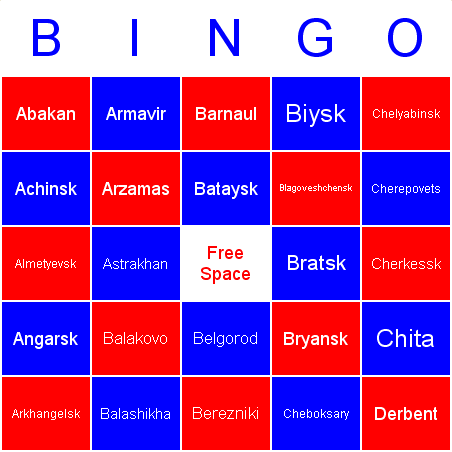
In this example, Russian cities bingo, we have created bingo cards that can contain the following items:
- Abakan
- Achinsk
- Almetyevsk
- Angarsk
- Arkhangelsk
- Armavir
- Arzamas
- Astrakhan
- Balakovo
- Balashikha
- Barnaul
- Bataysk
- Belgorod
- Berezniki
- Biysk
- Blagoveshchensk
- Bratsk
- Bryansk
- Cheboksary
- Chelyabinsk
- Cherepovets
- Cherkessk
- Chita
- Derbent
- Dimitrovgrad
- Dzerzhinsk
- Elektrostal
- Elista
- Engels
- Glazov
- Grozny
- Irkutsk
- Ivanovo
- Izhevsk
- Kaliningrad
- Kaluga
- Kamensk-Uralsky
- Kamysh
- Kansk
- Kazan
- Kemerovo
- Khabarovsk
- Khasavyurt
- Khimki
- Kirov
- Kiselevsk
- Kislovodsk
- Kolomna
- Komsomolsk-na-Amure
- Korolyov
- Kostroma
- Kovrov
- Krasnodar
- Krasnoyarsk
- Kurgan
- Kursk
- Kyzyl
- Leninsk-Kuznetsky
- Lipetsk
- Lyubertsy
- Magnitogorsk
- Makhachkala
- Maykop
- Mezhdurechensk
- Miass
- Moscow
- Murmansk
- Murom
- Mytishchi
- Naberezhnye Chelny
- Nakhodka
- Nalchik
- Nazran
- Neftekamsk
- Nefteyugansk
- Nevinnomyssk
- Nizhnekamsk
- Nizhnevartovsk
- Nizhny Novgorod
- Nizhny Tagil
- Noginsk
- Norilsk
- Novocheboksarsk
- Novocherkassk
- Novokuybyshevsk
- Novokuznetsk
- Novomoskovsk
- Novorossiysk
- Novoshakhtinsk
- Novosibirsk
- Novotroitsk
- Obninsk
- Odintsovo
- Oktyabrsky
- Omsk
- Orekhovo-Zuyevo
- Orenburg
- Orsk
- Oryol
- Penza
- Perm
- Pervouralsk
- Petropavlovsk-Kamchatsky
- Petrozavodsk
- Podolsk
- Prokopyevsk
- Pskov
- Pyatigorsk
- Rostov-on-Don
- Rubtsovsk
- Ryazan
- Rybinsk
- Saint Petersburg
- Salavat
- Samara
- Saransk
- Sarapul
- Saratov
- Sergiyev Posad
- Serpukhov
- Severodvinsk
- Seversk
- Shakhty
- Shchyolkovo
- Smolensk
- Sochi
- Solikamsk
- Stary Oskol
- Stavropol
- Sterlitamak
- Surgut
- Syktyvkar
- Syzran
- Taganrog
- Tambov
- Tolyatti
- Tomsk
- Tula
- Tver
- Tyumen
- Ufa
- Ukhta
- Ulan-Ude
- Ulyanovsk
- Ussuriysk
- Ust-Ilimsk
- Velikiy Novgorod
- Velikiye Luki
- Vladikavkaz
- Vladimir
- Vladivostok
- Volgodonsk
- Volgograd
- Vologda
- Volzhsky
- Voronezh
- Yakutsk
- Yaroslavl
- Yekaterinburg
- Yelets
- Yoshkar-Ola
- Yuzhno-Sakhalinsk
- Zelenodolsk
- Zheleznodorozhny
- Zhukovsky
- Zlatoust
Below is a printable set of russian cities bingo cards (click the Print icon in the window to print) along with a call-list. Just print and play!
If you want to create your own bingo cards (more cards, different colors, different items, etc.) why not download a copy of Bingo Card Printer? You'll be surprised at just how easy it is.
Instructions for producing your own custom russian cities bingo cards are below.
How to Create Your Own Russian cities Bingo Cards
- Download Bingo Card Printer software,
and follow the instructions for installing the program on your computer.
Downloading and using the basic features ("Free Trial version") of
the program is completely free.
- Click the big button: New Bingo Card Project...
- A dialog will be displayed:
- Go to the Geography tab
- Click to select Russian cities from the list
- Click OK
- If you want to change the colors, click Colors...
on the Format menu, change the colors in the dialog box, then click
OK.
- If you want to change the fonts, click Fonts...
on the Format menu, change the font selections in the dialog box,
then click OK.
- Click Print... on the File menu to print.
Russian cities Bingo Cards: Advanced Options
- Some features of
Bingo Card Printer
are only available to Registered users.
To register, click Register... on the Options menu and follow
the instructions.
- Only in Registered version of
Bingo Card Printer:
You can add your own items to the bingo cards by typing them into
the field labelled Type your new item here and pressing
Enter/Return on your keyboard.
- Only in Registered version of
Bingo Card Printer:
If you want to delete items from the bingo cards (either the default
items or items that you have added yourself), select them in the list
on the left-hand side of the screen, then click Delete Item in
the Edit menu.
- You can print 1, 2 or 4 bingo cards per page:
You can control this by altering the setting in the
Bingo Cards Per Page dropdown box.
- Only in Registered version of Bingo Card Printer: You can print more than 8 (up to 9,999) bingo cards at a time. You change the number of cards by editing the Bingo Cards to Print field on the main screen.
Related Links:

Getting A Teaching Job Teaching Downloads Teacher Interview Tips |
Bingo Card Maker Education Downloads Education eBooks Teaching Downloads Word Search Puzzle Maker More Software Downloads |
The Best Bingo Card Creator Print Bingo Cards On Your Computer The Best Bingo Card Creator |
